Slice, Support, and Print
Chitubox: The Ultimate Slicer for Resin 3D Printing
Chitubox is the most widely used and powerful 3D printing software, a Slicer, for resin-based 3D printers, including all major types like SLA, DLP, and LCD. Its primary function is to take a 3D model file, such as an STL or OBJ, and slice it into a series of thin layers, creating a file with instructions that the printer can read to build the final object by curing liquid resin layer by layer.
Free | v1.3.1 (Stable) | 617 MB
Last update: 31 Aug 2026
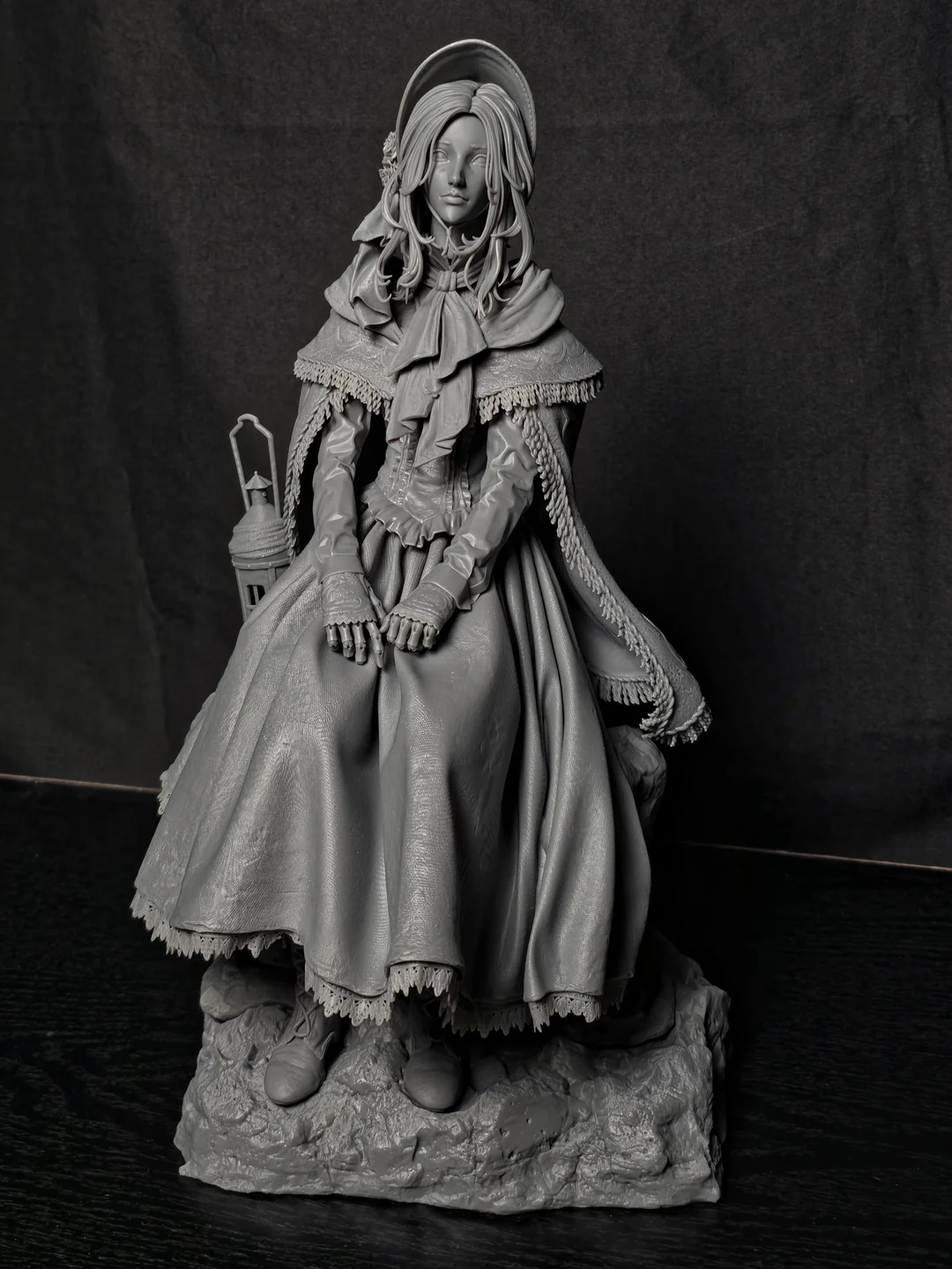

“Powerful, Easy, and Precise – Meet Chitubox”
Chitubox has become an essential part of the workflow for both hobbyists and professionals. It’s well known for its user-friendly UI, powerful tools, and broad compatibility with a wide range of devices & file formats. It is available in a free version – Chitubox Basic, and paid versions – Chitubox Advanced and Chitubox Pro, which offers more advanced tools.
Chitubox can do:
Model Preparation and Manipulation
Support Generation
Slicing and Print Settings
Error Detection & Model Repair
Key Features of Chitubox
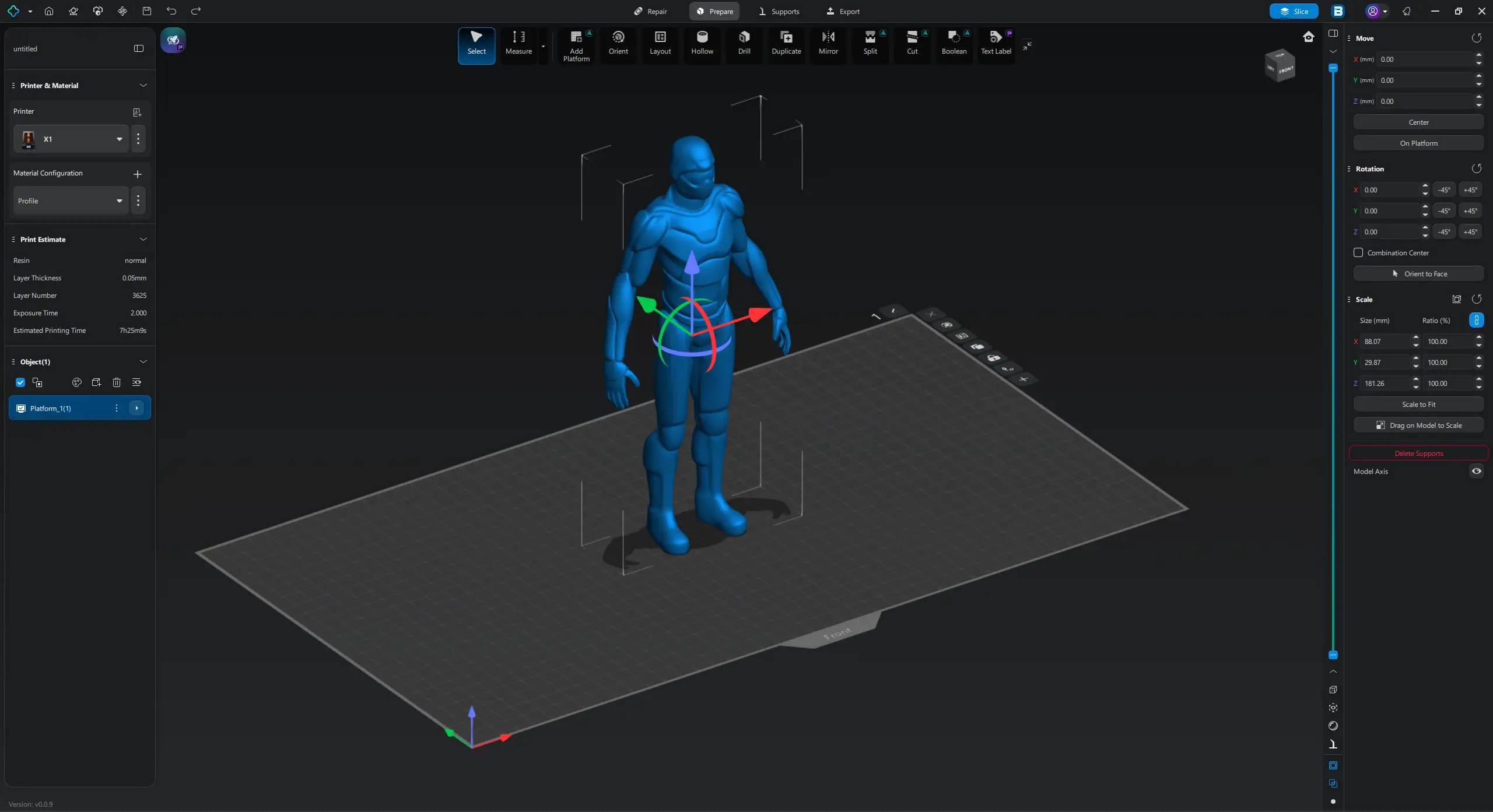
Chitubox provides a powerful set of tools for model preparate & manipulation. It allows users to scale, rotate, and position models on the build plate with precision. It also includes smart features for support generation to prevent print failures and ensure structural integrity. Additionally, users can fine-tune the parameters like layer height, exposure time, and lift speed with slicing and print settings to optimize print quality. And finally, its error detection and model repair features automatically identify and fix common issues like non-manifold geometry, ensuring an optimized and reliable printing process.
Model Preparation and Manipulation
It provides all the essential tools for preparing a model for printing. This includes importing various 3D file formats, as well as fundamental manipulation tools to move, rotate, and scale the model on teh virtual build plate. To save on resin and prevent print failures, a crucial hollowing feature is included, which removes the solid interior of a model. This is complemented by a Drill function to add essential drainage points for uncured resin. For users printing multiple objects, an auto-layout feature arranges models to maximize the build area.
Support Generation
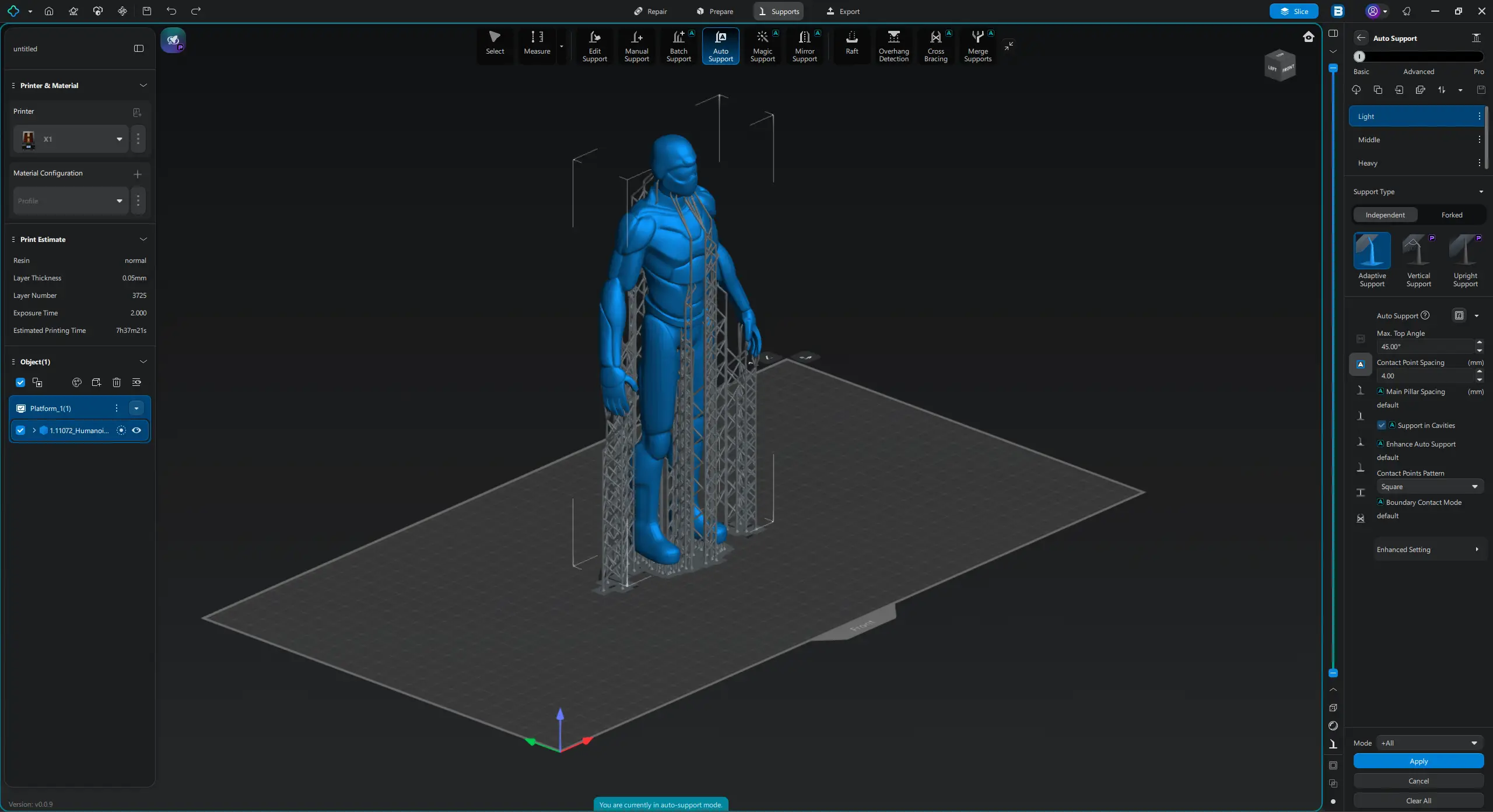
It’s a critical function for successful resin printing. For beginners, Chitubox offers a one-click Auto Support generation tool that places supports where they are needed. More advanced users can take advantage of its Edit & Manual Support tools to precisely add, move, or modify branches, and edit parameters, which helps to improve print quality and reduce post-processing work.
The paid Pro version comes with more advanced Support tools such as Batch Support for adding groups of supports onto model surfaces with different tools, and Magic Support for adding different types of supports based on user-defined scripts. It also has the Mirror Support for creatiing symmetrical supports based on models’ symmetry planes, Cross Bracing for adding cross structures among selected supports to improve stablity on tall supports, and Merge Supports for merging selected supports main pillars to form branched supports.
Slicing and Print Settings
This is where the 3D model is converted into printer-readable instructions. The slicing engine is fast and allows users to fine tune a wide array of print parameters, such as layer height, exposure time, transition layer count, transition type, lift speed, lift distance, restract speed, retract distance, etc. to achieve the perfect balance of speed and detail for their specific resin and printer. It also has advanced features such as PWM (Pulse-Width Modulation) for light intensity, anti-aliasing to smooth pixelated edges, and various compensation settings like shrinkage compensation, tolerance compensation, and print time compensation.
Error Detection & Model Repair
It offers multiple error detection and model repair tools to automatically check and fix common issues in the 3D models that could lead to print failure, like non-manifold geometry, inverted faces, or holes in the mesh. With a single click, it can repair these errors, saving the user from printing frustrations and wasted resin. This feature is valuable for users who download models from various sources as it provides a quick and reliable way to check and prepare files for a smooth workflow.
Chitubox Slicing Workflow

The steps for preparing a model for printing in Chitubox are as follows:
Step 1: Import Your 3D Model
Start by clicking the “Open” icon to import your 3D model. Chitubox supports formats like /stl, .obj, .3mf, etc. Once imported, the model will appear on the virtual build plate. It’s good to use the Error Detection and Model Repair tool to inspect for any errors and fix minor issues automatically.
Step 2: Model Preparation
- Positioning: Model orientation is key. Placing the flattest, largest surface directly on the build plate might seem intuitive, but it can lead to massive suction forces and print failure. Instead, angle your model at roughly 45° to minimize the surface area of each layer and make it easier for the print to separate from the FEP film. For highly complex models, manually rotate the model to eliminate or reduce the number of unsupported areas.
- Hollowing: For large, solid models, hollowing is a vital step. By creating a hollow interior, you reduce the amount of resin used, which saves the money and decreases the printing time. A good wall thickness is typically between mm and 2 mm.
- Drain Holes: When you a hollow a model, you must add drain holes. Use the Drill tool to strategically place holes in a location that will not be visible on the final model. These holes server two purposes: they allow uncured resin to drain out of the model and let the air in during the printing process to prevent suction from creating a vacuum and distorting the print.
Step 3: Support Generation
Supports are temporary structures that prevent a model’s overhangs from printing in mid-air. Without supports, any part of the model that isn’t connected to the build plate or a lower layer will fail to form properly.
- Manual & Auto Supports: Chitubox comes with both manual and automated support generation tools. The Auto Support tool is a great starting point for beginners. And for more complex and detailed models, manually adding and removing supports gives you precise control over placement and prevents damage to fine details.
- Support Settings: You can customize the supports by adjusting parameters like contact shape (how the support tip touches the model), density (how many supports are generated), and contact depth (how deep support tip embeds in the model). It’s a good rule of thumb to use light supports for delicate details, medium supports for general use, and heavy supports for large, structural parts or to anchor the model to the build plate.
Step 4: Slicing and Exporting
Once your model is prepared and supported, you are ready to slice it.
- Printer & Resin Profiles: Before slicing, double check that you have the correct printer and resin profile selected in the settings panel. These profiles contain all the critical information, such as as the correct layer exposure time which is vital for a good print.
- The Slicing Process: Press the Slice button and Chitubox will get to work. It calculates the entire print job, generates each layer, and estimates the total print time and resin usage.
- Exporting: After the slicing is complete, export the file. Ensure you save it in the correct format for your specific printer like .ctb and .cbddlp. Then you can transfer the file to your printer via a USB drive or network connection.
Chitubox UI & Tools Details
Its UI is designed to be highly functional and easy to navigate. It offers a logical workflow from model import to error detection, preparation to support generation, slicing to exporting, with all key tools easily accessible through an organized interface. The UI is broken down into several key areas and all tools are explained below:
Left Panel: Printer, Material & Object Configuration
This is your primary control panel for setting up a print job.
- Printer: Here you can select your 3D printer model. This tells Chitubox the exact dimensions of your build plate, the resolution of your screen, and the specific file format (.ctb, .cbddlp, etc.) your printer requires.
- Material Configuration: This section is for setting up your resin’s parameters.
- Resin: Select the specific resin you are using (e.g., Phrozen – ABS-like). This affects the default settings for the next section.
- Print Parameters: A crucial section with key settings that determine the quality and success of your print. You can adjust the Layer Thickness, Exposure Time, and Bottom Exposure Time. This is where you fine-tune settings for optimal print results.
- Estimated Printing Time: An estimate of how long the job will take.
- Estimated Cost: An estimate of the resin required and the cost of the print.
- Objects: This lists all the 3D models currently on your build plate. You can select and manage individual models from this list, which is useful when you have multiple objects in one print job.
Top Panel: Repair, Prepare, Supports & Export

Top panel displays all the tools, functions, and control settings
Repair Tools
- Error Detection: It helps locate common model errors such as excess shells, non-manifold holes, and inverted normals.
- Basic Repair: It performs a series of automatic checks and repairs to make the model manifold and ready for printing.
- Close Trivial Holes: It automatically fixes defective holes and missing surfaces that have six or fewer edges.
- Close all Holes: It automatically fixes all damaged holes and missing surfaces in the model.
- Orientation Repair: It attempts to fix the orientation of the model’s faces, ensuring all normals points outward.
- Coat Outer Surface: It traverses the outer surface of the model to regenerate the surface and remove damaged internal structures.
- Triangle Repair: It manually fixes issues related to the model’s triangular mesh, such as non-manifold edges and flipped normals.
- Advanced Repair: It checks if the model is solid and attempts to remove any cavities within the model.
Prepare Tools
- Orient: It automatically sets the orientation of the selected 3D model. The longest line between any two points on the model’s surface is considered the vertical axis for the this auto-orientation.
- Layout: It sets the layout of the selected 3D model automatically. It defined the position and orientation of the model on the build platform.
- Hollow: It hollows out a model to reduce the amount of material used during printing.
- Hollow Modes:
- Inner: Hollows the model from the inside.
- Outer: Peels a specified thickness of wall from the model.
- Bottom Through: Similar to the Inner mode, but also hollows the bottom of the model.
- Infill: It adds infill to the hollowed area to improve strength and model stability. It has three types of infill – Scaffold, Hive, and Grid.
- Hollow Modes:
- Drill: It drills holes into the model to allow resin to flow out during the printing process.
- Duplicate: It creates a copy of the selected model and specified the number, spacing, and layout.
- Mirror: It mirrors the selected model along a specified axis.
- Split: It splits the selected model into multiple objects by checking for geometric integrity and intersections.
- Cut: It cuts the model along a specified axis or by drawing a cutting plane with two selected points.
- Boolean: It applies Boolean logic to two models, like Union, Difference, Intersection, etc. to help users create complex geometric shapes or remove unwanted parts.
- Text Label: It adds a text label to the model for identification or annotation.
Support Generation Tools

- Edit Support: It allows you to modify existing support structures.
- Manual Support: It lets you manually add support structures. It’s best for complex models where automatic supports don’t provide the best results.
- Adaptive Support: It adds supports that adapts to the model’s geometry and overhangs.
- Vertical Support: The top of the support is vertical to the model’s contact surface.
- Upright Support: The top of the support is generated directly on the main stem and is perpendicular to the print platform.
- Branch Support: The top segment consists of multiple branches that can be adjusted to fit the model’s geometry.
- Joint Support: The top segment is generated on an extra forked segment of the main stem, located two segments above the main stem.
- Small Support: The lower diameter of the top segment is set to be the same as the upper diameter, giving the top a slender, columnar shape.
- Tree Support: The top segment is generated on an extra forked segment of the main stem, similar to the Joint Support, but can only generated on the main stem.
- Batch Support: It lets you generate support structures for specific areas of the model.
- Auto Support: It automatically generates support structures based on the model’s geometry, saving time & effect, and is suitable for most standard models.
- Magic Support: It allows you to add support structures with different parameters to different parts of the model.
- Raft: It generates a flat surface that servers as the printing base for the model. It improves adhesion between the model and the build platform, making it easier to print and remove.
- Overhang Detection: It identifies parts of the model that may require supports.
- Cross Bracing: It adds extra support structures between existing supports to improve stability.
- Merge Supports: It merges multiple supports structures into one, reducing the total number of supports and saving resin material.
Right Panel: Model Visibility & Display Controls
Right panel has the tools to control how you see your model, helping you make better design and preparation decisions.
- View Controls: It lets you get a better look at all parts of the model with its various modes.
- Perspective Mode: It provides a more realistic view of the scene, ideal for checking the overall appearance of the model.
- Orthographic Mode: It offers a flat, 2D view, which is useful for evaluating an object’s position on the print platform.
- Default View: It resets the view to the default perspective.
- View Cube: It allows you to switch between different angles or viewpoints quickly.
- Bounding Box Display Control: It measures and displays the dimensions of the selected model’s bounding box (the smallest rectangular box that encloses the model).
- Model Visibility Controls: It lets you change how your models are shown on the screen. It has two modes:
- Detail Mode: It shows the model with more surface details, making it good for close-up inspections.
- Shade Mode: It provides a smooth, shaded view of the model’s surfaces, which is useful for checking its overall shape.
- Support Display Modes: It allows you to switch how supports are displayed to better inspect and adjust their structure. It has three functions:
- Full Support: It displays the complete support structure.
- Top Support: It shows only the top parts of the supports.
- Tip Support: It shows only the very tips of the supports.
Guide to Set up & Use Chitubox
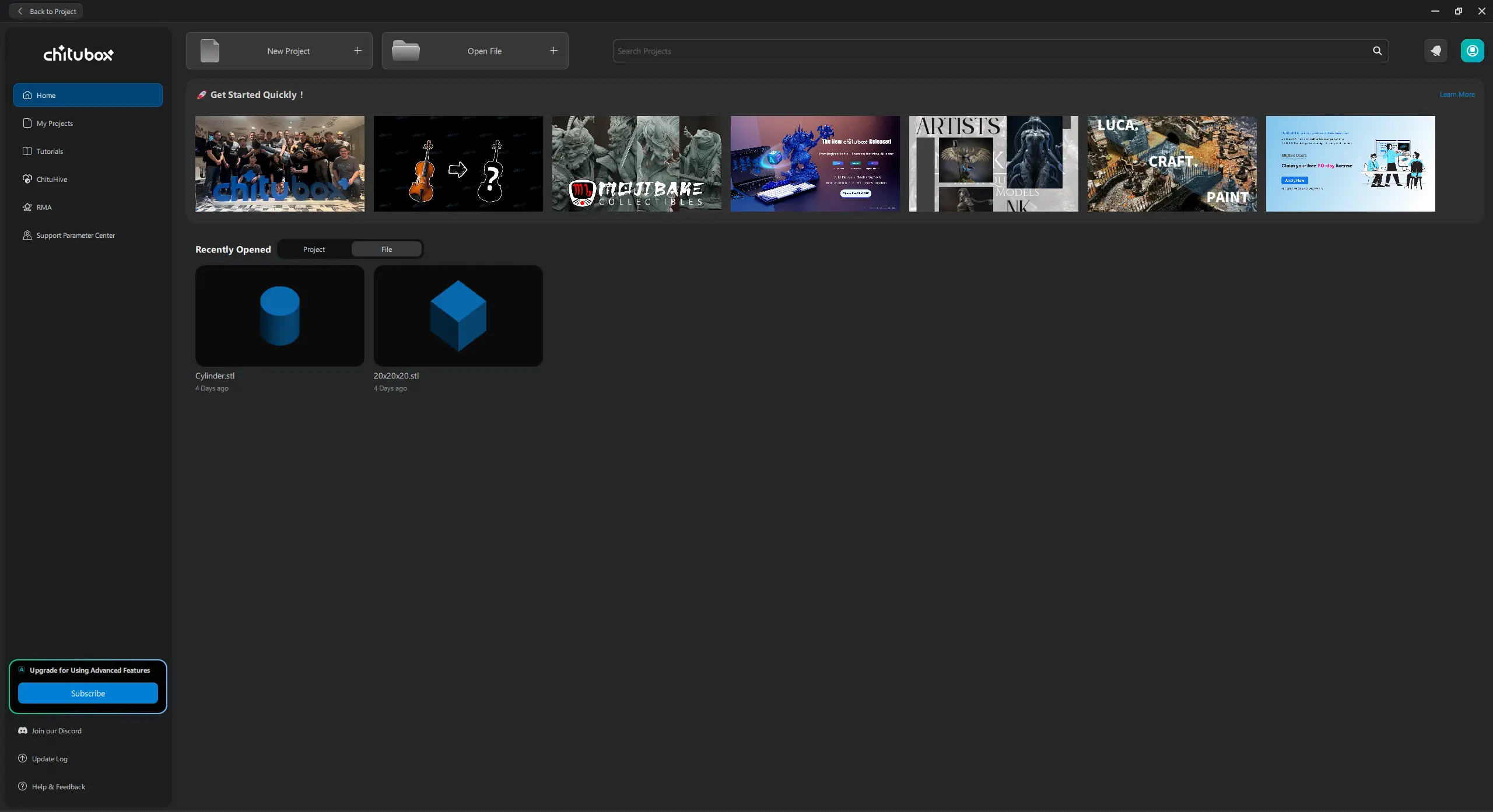
New to Chitubox? The following step-by-step guide will help you install Chitubox and start 3D printing in no time.
How to Install Chitubox
- Download: Download the Chitubox Installer for your OS (Windows, macOS, or Linux).
- Run the Installer: Double-click the downloaded file.
- Accept the Agreement: Read and accept the license agreement.
- Choose Installation Path: Select the desired location for the software. The default location is in C drive, which is usually fine. Then click the Install button.
- Launch: Wait for the installation to complete and then launch the Chitubox.
Guide to Use Chitubox

- Add Your Printer:
- When you first open Chitubox, you will be asked to add your printer.
- Select your specific printer model from the list. It will automatically load the correct build plate dimensions and default slicing settings. Note: Do not change the default resolution, size settings
- Import Your Model:
- Drag and drop your 3D model file like .stl or .obj directly into the Chitubox workspace.
- You can also go to File >> Open and select your model.
- Drag and drop your 3D model file like .stl or .obj directly into the Chitubox workspace.
- Position and Orient the Model:
- Use the Move, Rotate and Scale tools on the right-hand side to position your model on the build plate.
- Orienting the model at an angle helps reduce the surface area of each layer, minimizing suction forces and increasing the chance of a successful print.
- Use the Move, Rotate and Scale tools on the right-hand side to position your model on the build plate.
- Add Supports:
- Click the Support icon in the top toolbar to enter the support generation menu.
- For beginners, use the ‘Auto Support’ tool. It will automatically generate the necessary structures.
- Review the supports and manually add or remove supports if necessary.
- Hollow the Model:
- If your model is solid and large, click the Hollow icon.
- Set a wall thickness and add a new drainage holes at the lowest point of the model to allow uncured resin to escape.
- Review Slicing Settings:
- Click the Slice >> Slice Settings to check your slicing parameters.
- Confirm the Layer height, exposure time, and lifting speed are appropriate for your specific resin and printer. Most printer manufacturers and resin brands provide recommended settings.
- Slice and Save:
- Click the Slice button at the bottom right. The software will process the model and display a layer-by-layer preview.
- Once the slicing is complete, click Save and save the .chitubox or other compatible file format.
- Copy the file to a USB drive.
- Print:
- Insert the USB drive into your 3D printer and start the print from the printer’s menu.
Common Problems & Troubleshooting
Every resin printer user encounters issues. Below are some of the most common problems and their solutions.
Problem: Prints are not sticking to the build plate.
Solution: Your bottom layer exposure time is likely too low. Increase it in 5-second increments and test again. Also, ensure your build plate is properly leveled and clean. A failed print often leaves a solid sheet of cured resin on the FEP film.
Problem: Failed prints or supports are peeling off.
Solution: The supports are too weak or there aren’t enough of them. Increase the support density, adjust the contact depth to be deeper, or switch to a heavier support type.
Problem: Models have warped or distorted sections
Solution: This is often caused by suction forces. If you’ve hollowed the model, ensure your drain holes are large enough and well-placed. Re-orienting the model to reduce large, flat surfaces parallel to the build plate can also help.
Problem: Software crashes or errors.
Solution: Ensure you are using the latest version of Chitubox. If the problem persists, try updating your graphics card drivers, as some complex models can strain system resources.
Problem: “Elephant’s Foot” – The first few layers of a model are wider than the rest.
Solution: This is caused by over-curing the bottom layers. Reduce your bottom exposure time in small increments (5 seconds at a time) and/or reduce your bottom layer count.
Problem: Failed hollow prints (cracks or internal leaks).
Solution: Your drain holes are not large enough or are clogged. A failed hollow print is often the result of an internal vacuum building up, which can cause the model to crack and fail. Ensure you have at least two drain holes and they are large enough to allow resin to drain freely.
Some Tips to Get Started
Once you’re comfortable with the basics, try the tips written below that will help you optimize your prints.
Manual Support Generation: Don’t just rely on auto-supports. Take the time to analyze your model and manually place supports on delicate or tricky overhangs. You can also mix and match different support types (light, medium, heavy) on a single model. Use the visual “island” detection tool to find and support all areas that would otherwise fail quickly.
Adding Rafts: A raft is a flat base that is printed first, with the supports built on top of it. Rafts create a much larger surface area that adheres firmly to the build plate, dramatically reducing the chance of your model detaching mid-print. You can configure the raft shape to be a “skate,” “brim,” or a “raft.” For the best adhesion, a raft is generally recommended.
Working with Multiple Models: You can place multiple models on the build plate to print them all in one go. Chitubox’s “Auto-Layout” feature helps you arrange them efficiently to make the most of your available space.
Anti-Aliasing: These settings are found in the Slicing Settings >> Advanced tab and are used to smooth out the jagged edges from the pixelated LCD screen. By enabling anti-aliasing, you can significantly reduce the appearance of pixel lines on your final model, leading to smoother surfaces.
Conclusion
Chitubox is more than just a tool. It’s the foundation of a successful resin 3D printing. By mastering its features and understanding the tools, parameters, and settings, you can overcome common challenges and achieve professional-quality results from your 3D printer. Its free version has all the necessary tools, perfect for a beginner, while the advanced & pro version offers powerful tools for professionals. It makes it the best slicer for anyone who does resin 3D printing. And here, on Chitubox.net, you can get its latest version.



Contact Us